Appointment Confirmation
Starter & ProSent immediately after booking
Reassures your client right away that their date and time are locked in.
Larry's Landscaping: Hi Sarah Jenkins, your appointment is confirmed for Oct 28, 2026, 10:00 AM.Documentation & User Guide
how to use PebbleSend
Everything you need to configure your reminder sequence, book client appointments and automate follow-up reviews.
Get help at any time by sending an email to help@pebblesend.com
Configure PebbleSend in under 2 minutes.
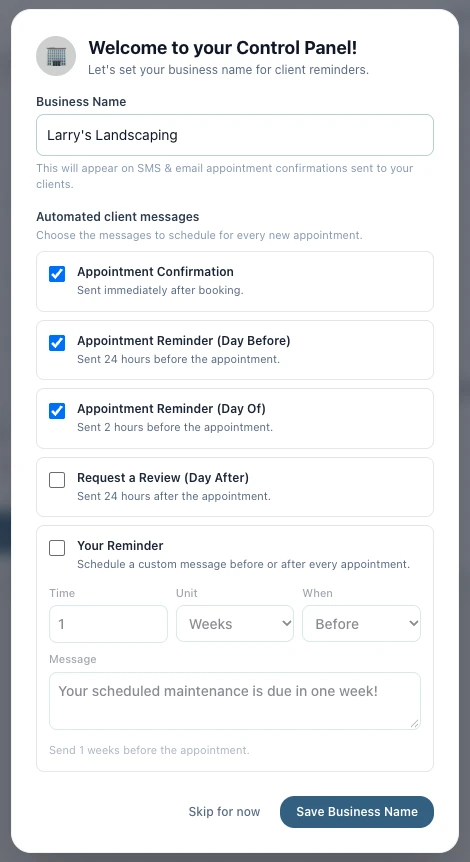
Once you've created your account, you'll be directed to set up your Business Name and initial message sequence.
Why your Business Name matters
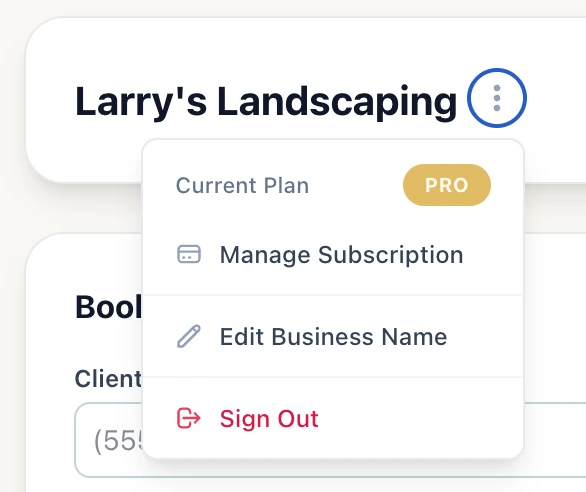
Every text message and email sent to your clients begins with your business name so customers immediately recognize who is messaging them. You can edit your business name anytime by clicking the three-dot menu (⋮) next to your name in the top header and selecting Edit Business Name.

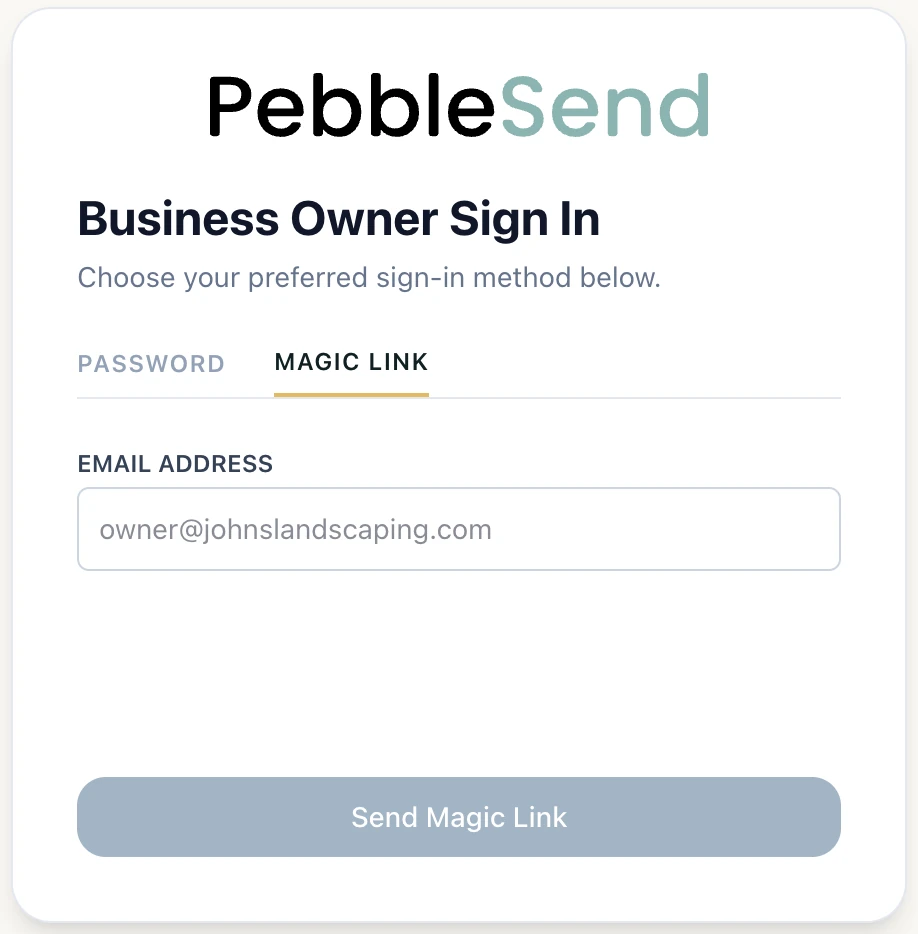
PebbleSend offers two flexible ways to access your Control Panel: password-free sign-in with a Magic Link, or traditional sign-in with your email and password.
Access your account securely without entering a password. With Magic Link sign-in, PebbleSend delivers a secure, single-use login link straight to your email - a great option when you're in the field and don't want to hunt for your password.

Visit book.pebblesend.com/login and select the Magic Link option on the sign-in screen.
Enter the email address associated with your PebbleSend account and click Send Magic Link.
Open the email sent by PebbleSend and click the magic sign-in link. You will be authenticated immediately and directed to your Control Panel without having to remember or type a password.
Account setup required
Note: You can only access your account without a password after your account has been setup. You must use the same email address that was used to set up the account. If you are new to PebbleSend, please complete your initial registration and account setup before using the magic link login.
If you prefer using a password, you can sign in directly using the email address and password you set up when creating your account.
Navigate to book.pebblesend.com/login and click the Password tab at the top of the sign-in form.
Enter the email address associated with your PebbleSend account and your account password.
Click the Sign In button to open your PebbleSend Control Panel directly.
Set-up your message sequence during the initial log-in. This sequence will be used for every appointment you make and can be changed at any time by clicking Message Sequence in the upper-right corner of your Control Panel.
Let's take a look at the different types of messages you can send.
Sent immediately after booking
Reassures your client right away that their date and time are locked in.
Larry's Landscaping: Hi Sarah Jenkins, your appointment is confirmed for Oct 28, 2026, 10:00 AM.Sent 24 hours before the appointment
Gives clients a heads-up the day before so no one is surprised. Automatically skipped if an appointment is booked less than 24 hours in advance.
Larry's Landscaping: Hi Sarah Jenkins, this is a reminder that you have an appointment tomorrow at 10:00 AM.Sent 2 hours before the appointment
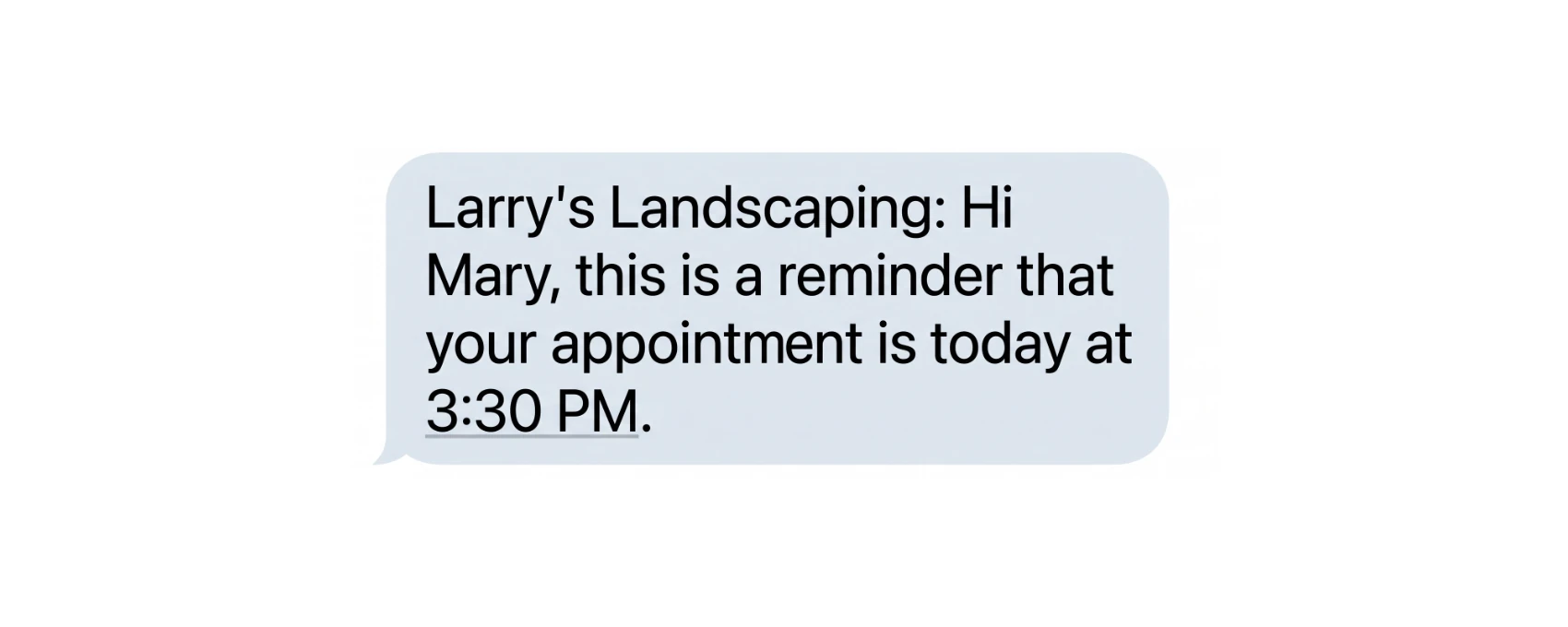
A same-day reminder sent two hours before arrival.
Larry's Landscaping: Hi Sarah Jenkins, reminder that your appointment is today at 10:00 AM.Sent 24 hours after the appointment
Automatically follows up the next day with a direct link to your review page - so you earn 5-star reviews without having to ask in person.
Hi Sarah Jenkins. How was your appointment? Your review can help future clients find us. Thanks! https://g.page/r/your-business/reviewAutomatically collect 5-star public ratings after every completed appointment. PebbleSend sends a follow-up text or email with your direct review link 24 hours after service.
In your Control Panel, click Message Sequence in the top header. Check the Request a Review box to activate automated 24-hour post-appointment follow-ups.
Enter the direct review link for your Google, Yelp, Nextdoor, Facebook, Angi, or Care.com profile into the Review Link field and click Save Changes.
Looking for your platform's direct review URL?
Each review platform has a specific link that lets customers leave a rating immediately without having to search for your business. Read our guide for step-by-step instructions:
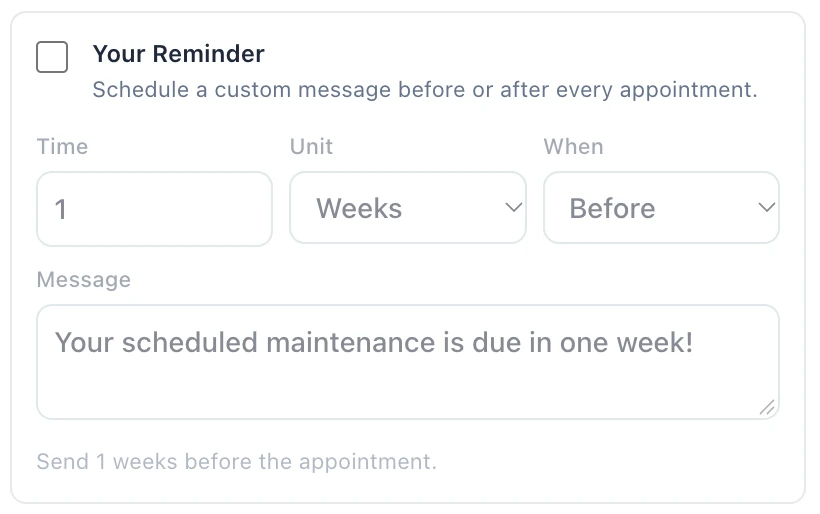
How to Create Review LinksNeed to send preparation instructions 3 days before a job, or a routine maintenance check-in 6 months after service? Enable Your Reminder at the bottom of the Message Sequence settings.

Insert these placeholders anywhere in your custom message text and PebbleSend will automatically swap them with real appointment details when sending:
| Placeholder | Replaced With |
|---|---|
{businessName} | Your saved business name |
{clientName} | Client’s name on the booking |
{appointmentDate} | The date you set for the appointment (i.e., Oct 28, 2026) |
{appointmentTime} | The time you set for the appointment (i.e., 2:30 PM) |
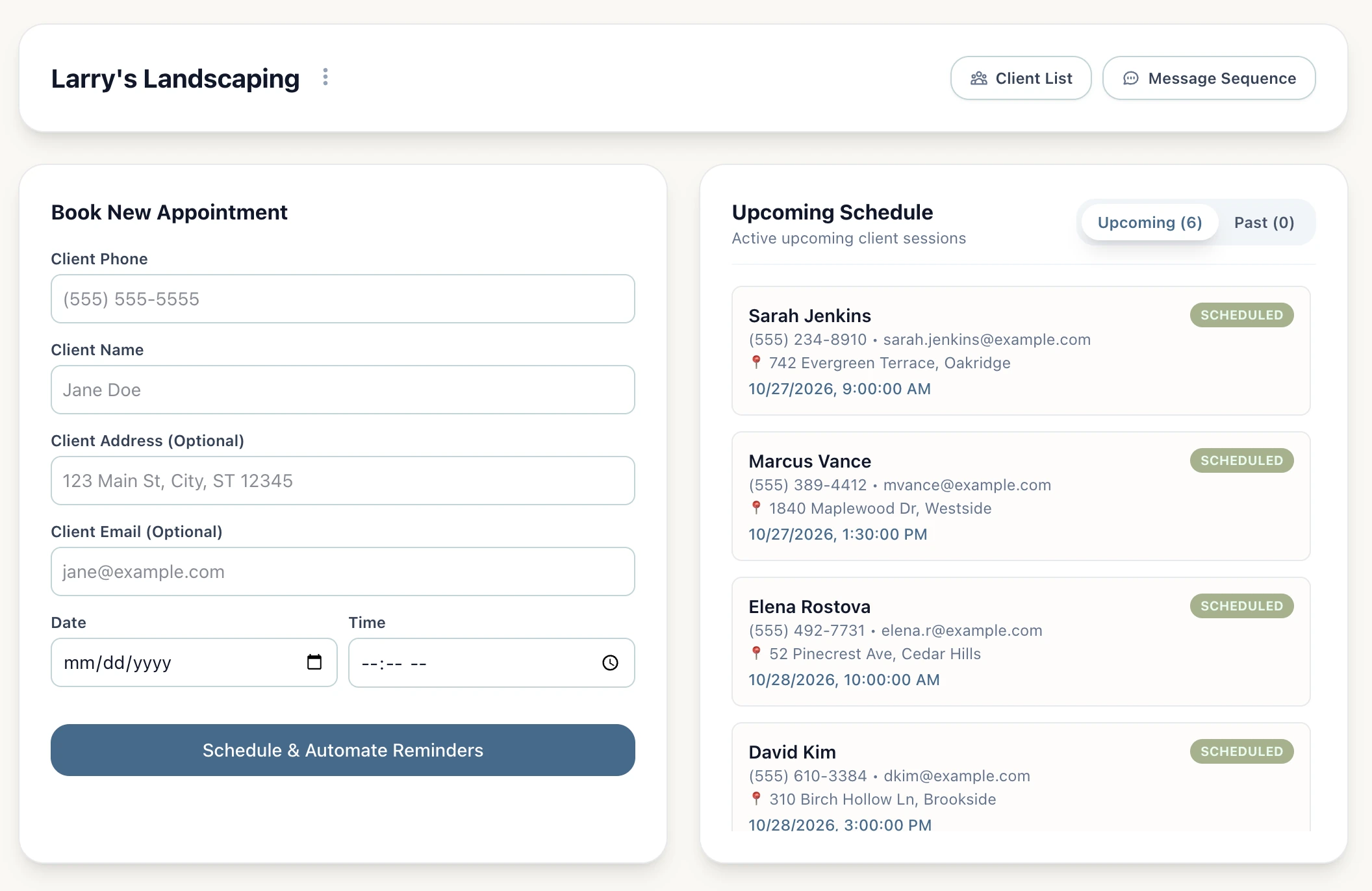
Hello {clientName}, your last therapy session was on {appointmentDate}! Call us today to schedule your next appointment.Hello Sarah Jenkins, your last therapy session was on May 23, 2026! Call us today to schedule your next appointment.Scheduling an appointment takes less than 10 seconds from the Book New Appointment card.

Enter a 10-digit phone number and PebbleSend validates it for SMS delivery.
Note: Entering a past client’s phone number automatically fills the saved Name, Address, and Email!
Enter your client’s name. Used to personalize every confirmation, reminder, and review request.
Record the service address or location notes. The location will be displayed right on your schedule card for quick reference in the field.
When you include an email address, PebbleSend automatically dispatches every enabled message in your sequence via both SMS and Email simultaneously.
Pick any future appointment date and time up to 1 year in advance. Click Schedule & Automate Reminders to save the booking and queue all enabled notifications immediately.
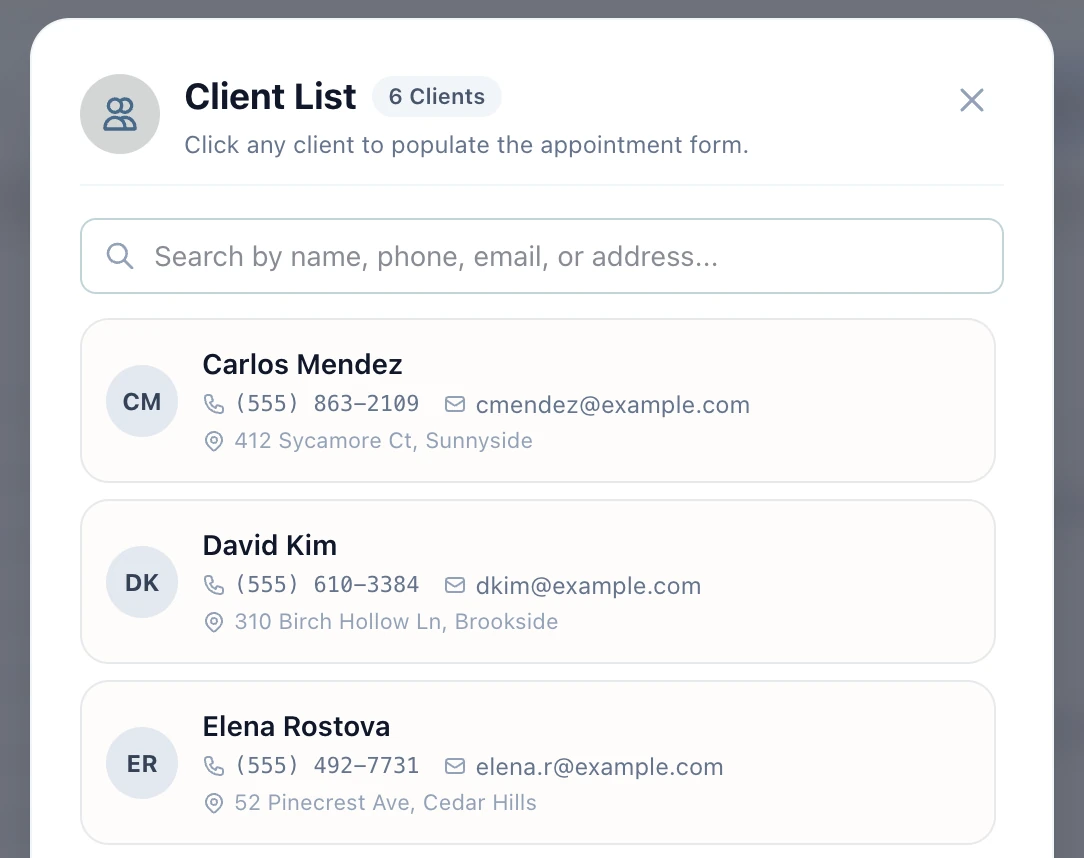
Every time you schedule an appointment, PebbleSend saves your client’s information. Pro subscribers unlock full access to search and reuse those records.

Type a past customer’s phone number in the Client Phone field and PebbleSend populates their Name, Address, and Email automatically (on both plans!)
Click the Client List button in the top navigation bar to view all saved clients alphabetically:
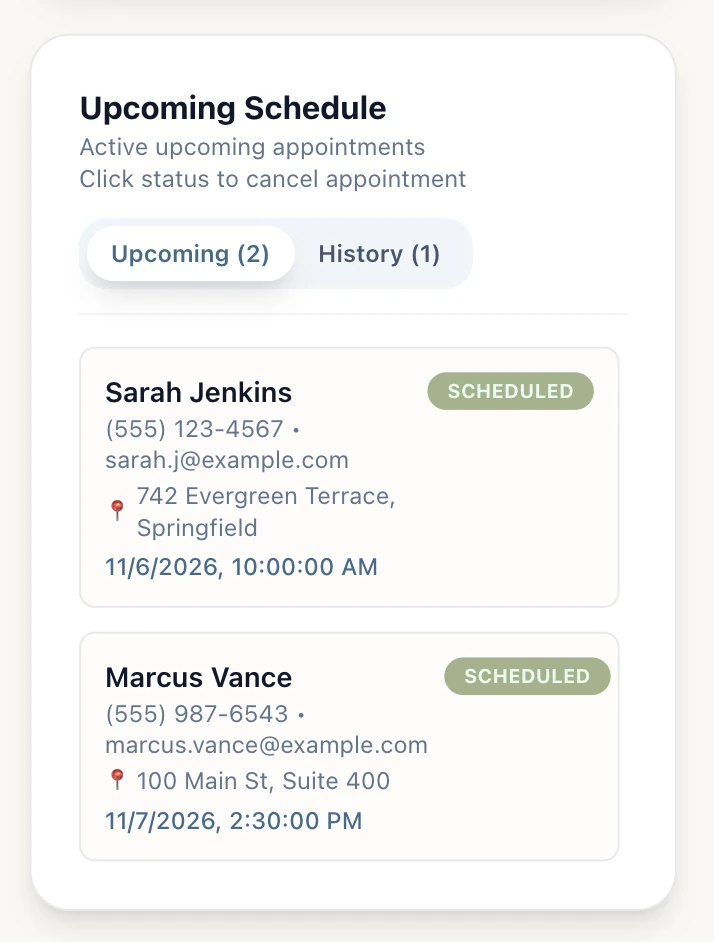
The Schedule panel of your dashboard keeps your schedule organized in real time without clutter.
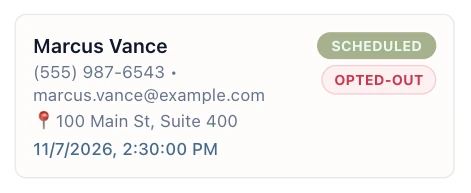
Displays all active future appointments sorted chronologically with your next upcoming session at the top. Each card shows the essential information you saved about the appointment.
Once an appointment’s scheduled time passes, it automatically moves to the History tab—sorted with your most recently completed sessions first so you can easily review recent jobs and re-book repeat customers.

Need to cancel an upcoming visit? You can stop all unsent reminders and other messages for any scheduled appointment in two clicks:
In the Upcoming tab, click the green SCHEDULED pill on the appointment card you want to cancel.
Click Cancel Appointment in the confirmation dialog. PebbleSend immediately stops any unsent SMS and email messages (including reminders and post-appointment review requests) and moves the appointment to the History tab marked as CANCELLED.
Can I reschedule an appointment?
No - to reschedule an appointment, simply cancel the existing booking and re-book that customer with their new date and time. (Tip: Entering their phone number or selecting them from your Client List will auto-fill their saved info!) Your customer will automatically receive the confirmation and reminders for the new appointment time.
Your customers never need to download an app, create a login, or remember a password. Reminders arrive as standard text messages and emails starting with your business name, so your customers know who messaged them right from their message list.

PebbleSend is a dedicated outbound reminder tool using our own phone numbers. This means you don't need to pay for or manage your own business number. However, if a client replies with a general message, PebbleSend automatically responds with a note to contact you directly:
This number does not accept responses. Please contact the business directly.To keep your business compliant with carrier 10DLC and TCPA regulations, clients can reply STOP (or UNSUBSCRIBE, CANCEL, QUIT or END) to any text message. When they do, PebbleSend immediately marks their phone number as opted out, adds an OPTED-OUT badge to their appointment card, and automatically skips any pending or future SMS messages.

STOP.Consider contacting you customer.
Customers sometimes reply STOP thinking it cancels their visit rather than just unsubscribing from text alerts. We recommend contacting the customer directly to confirm whether they still plan to keep their appointment. You can also cancel the appointment to remove it from your active schedule - though this isn't required, since PebbleSend won't send SMS messages to an opted-out number anyway.
If a customer opted out by mistake (or replied STOP when trying to cancel a past visit) and wants to receive text reminders again, they can re-subscribe at any time by texting START, UNSTOP or YES back to the PebbleSend number.
STARTAs soon as the customer texts START, UNSTOP or YES, PebbleSend automatically clears the OPTED-OUT status on their card and restores SMS delivery for their active and future bookings.
Customer-controlled opt-in
To comply with mobile carrier rules, an SMS opt-out can only be reversed by the customer texting START or UNSTOP from their phone - it cannot be manually toggled from your Control Panel.
Switch between plans or update your billing details at any time directly from the Control Panel.

Click the three-dots (⋮) next to your Business Name and select Manage Subscription to update your payment card, switch plans, or cancel your subscription anytime.
Both plans get the job done: from essential automated reminders in Starter, to customizable message timing, follow-ups, and review requests in Pro.
| Capability | Starter ($9/mo) | Pro ($19/mo) |
|---|---|---|
| Immediate Appointment Confirmations | ||
| Day-Before Reminders | ||
| Email and SMS reminders | ||
| Day-Of Reminders | — | |
| Automated Review Requests with Custom Review Link | — | |
| Fully Custom “Your Reminder” | — | |
| Returning Client Phone Auto-Fill | — | |
| Searchable Client List Directory | — |

Join the professionals who keep their schedules running smoothly with PebbleSend.
Get started